BigQuery
STEP 1
Step 1
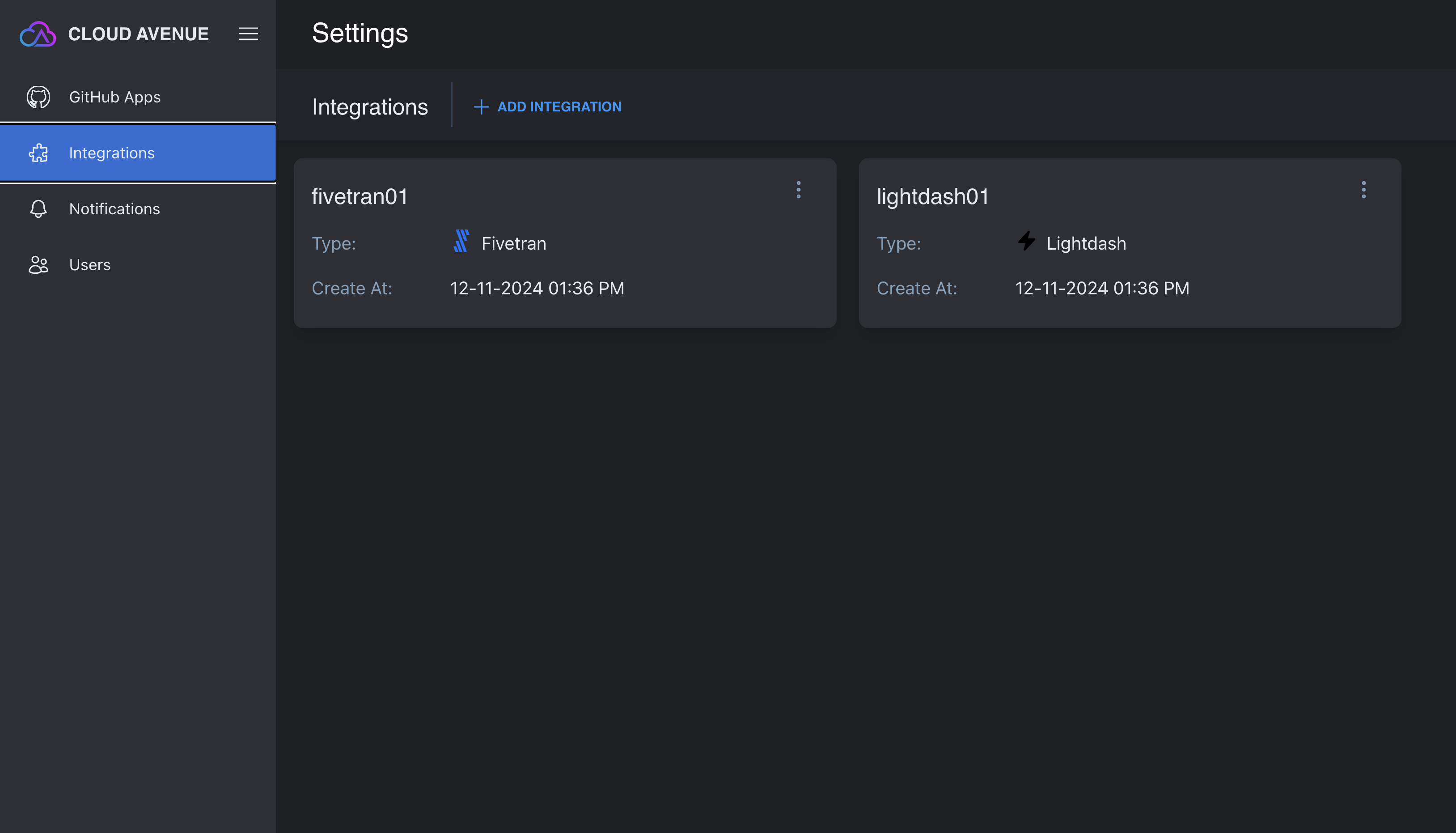
Navigate to Integrations section of our portal and click Add Integration: Integrations.
STEP 2
Step 2
Select BigQuery and fill in the following fields:
- Schedule: How often Cloud Avenue should refresh metadata from BigQuery.
- API Secret: Paste the full contents of your GCP service account JSON key.
- Project ID: Your GCP project ID (field key:
project_id).
Optional Filters
Depending on your account configuration, you may also see optional filters to scope what gets ingested. These accept comma-separated patterns:
- Schema Filter
- Database Filter
- Table Filter
- View Filter
Creating a Service Account, Custom Role, and JSON Key (GCP)
This integration uses a GCP service account to authenticate. The recommended approach is:
- Create a custom IAM role with the minimum required permissions
- Create a service account
- Grant the custom role to the service account
- Create a JSON key and paste it into API Secret
1) Create a custom IAM role
In the Google Cloud Console:
- Go to IAM & Admin -> Roles
- Click Create role
- Set a title (for example:
CloudAvenue BigQuery Metadata Reader) - Add the following permissions:
| # | GCP Permission | Required For |
|---|---|---|
| 1 | bigquery.datasets.get |
|
| 2 | bigquery.tables.get |
|
| 3 | bigquery.tables.getData |
|
| 4 | bigquery.tables.list |
|
| 5 | resourcemanager.projects.get |
|
| 6 | bigquery.jobs.create |
|
| 7 | bigquery.jobs.listAll |
|
| 8 | bigquery.routines.get |
|
| 9 | bigquery.routines.list |
|
| 10 | datacatalog.taxonomies.get |
|
| 11 | datacatalog.taxonomies.list |
|
| 12 | bigquery.readsessions.create |
|
| 13 | bigquery.readsessions.getData |
|
| 14 | logging.operations.list |
Reference (GCP):
2) Create a service account
- Go to IAM & Admin -> Service Accounts
- Click Create service account
- Choose a service account name and create it
Reference (GCP):
3) Grant the custom role to the service account
- Go to IAM & Admin -> IAM
- Click Grant access
- Add the service account principal (the
...@...iam.gserviceaccount.comemail) - Select the custom role you created
- Click Save
Reference (GCP):
4) Create and download a JSON key
- Go to IAM & Admin -> Service Accounts
- Select the service account
- Go to the Keys tab
- Click Add key -> Create new key -> JSON
- Download the key, open it, and copy the full JSON contents
Paste the full JSON into the integration's API Secret field.